Add or replace a photo
In the builder, click the photo on your card. The Image window opens: that’s where you choose your own photo and put it on the invitation.
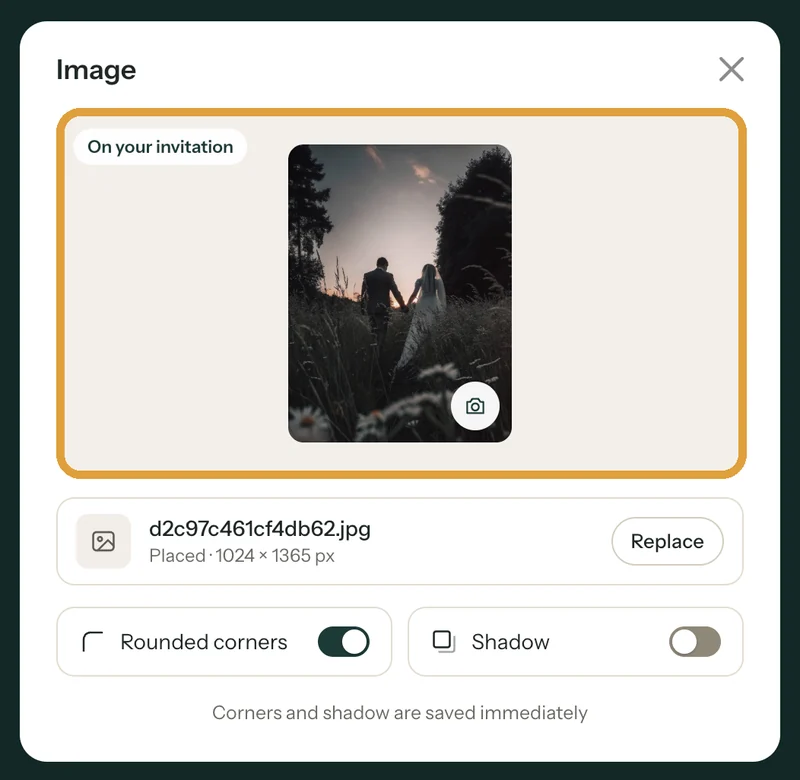
1. Open the Image window
Click the photo, or open More in the text bar and choose Replace image. At the top of the window is the photo that’s on your invitation now. If it still belongs to the design, it’s marked Example image. Your own photo has the label On your invitation, with the file name and size below it.
2. Choose your photo
Click Replace, or the small camera at the bottom right of the photo. Hover over the photo and you’ll also see Change photo. On a computer you can drag a photo into the window; on your phone you simply pick from your photos.
You can use JPG, PNG, WEBP and HEIC (iPhone). A HEIC photo is converted to JPG. A very large photo is made smaller by the builder first, so it uploads faster.
3. Place the photo
The new photo appears with the label Not placed yet. What you see is exactly how it will look on your invitation. Want a different one? Click Choose another photo. Happy with it? Click Place image.
Two steps follow. First the photo is uploaded; the button shows how much has arrived. Then you see Processing photo… this can take a moment. Keep the window open until then. It closes by itself once your photo is on the card.
Corners and shadow
Below the photo you switch Rounded corners and Shadow on or off. These choices are saved immediately; for a new photo they apply once it’s placed.
The Without image layout has no room for a photo, so there’s no Replace image under More either. If uploading doesn’t work, see My photo won't upload.
Next step: Which photo works best?
Last updated: November 11, 2026