Editing and formatting text
Click a text on the card and type. To format something, select the text and choose what you want in the text bar.
Changing text
The card is made up of a few separate text fields, such as a line at the top, the names and the rest of the text. Click into a field and type, delete or paste as usual. Press Enter to start a new line.
Formatting
- Select the words you want to change.
- Pick a font on the left of the text bar. At the top of the list are the fonts already used In this design; below them the rest, in groups such as Classic, Modern and Narrow. If you know the name, type it into the list’s search box.
- Make the letters smaller or bigger with A- and A+. Each click is one size; there are eight, from Extra small to Extra huge.
- Click the text colour button. A small panel opens with colours, a colour wheel, a pipette and a box for a colour code (Using the colour picker and pipette).
- Make words bold or italic with the B and I buttons. Underline and strikethrough are under More.
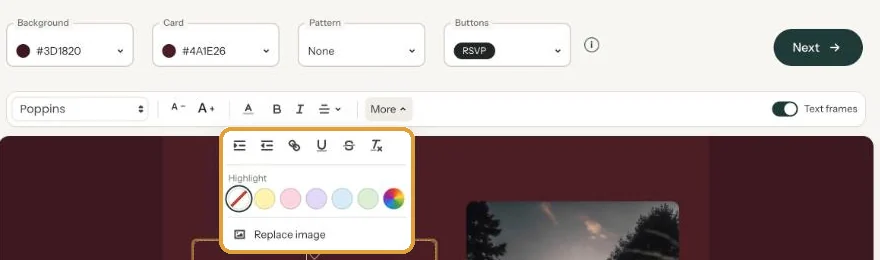
A highlight
Open More and, under Highlight, click one of the five soft colours, or the colour wheel for a colour of your own. The first circle, with the diagonal line, removes the highlight again.
Clearing formatting
Select the text, open More and click clear formatting (the T with a small cross). Bold, colour, font and size of that text disappear, so pick the font of the rest again if needed.
Prefer the keyboard? See Using keyboard shortcuts.
Next step: Replacing the example text with your own details
Last updated: November 11, 2026
- Designing your invitation: the basics
- Choosing a layout
- Choosing the background and card colour
- Using the colour picker and pipette
- Editing and formatting text
- Replacing the example text with your own details
- A new look in seconds with Redesign
- Undoing changes
- Moving and aligning text
- Showing or hiding text frames
- Adding a pattern
- Adding a link to your text
- Customising a ready-made design
- Using keyboard shortcuts